This post is part one of a series adapted from Practical KMP, my book on building production Kotlin Multiplatform apps for Android and iOS.
Part 1: Creating the Kotlin Multiplatform Module
In this part of the book, we’ll build the complete authentication remote store, defining a repository that handles every operation our app needs for managing user accounts. We’ll be using Ktor as our networking library and Firebase Authentication’s REST API as our backend, giving us a way to sign users up, sign them in, and manage their accounts from our shared code.
Because we’re modelling the API ourselves rather than relying on a third-party SDK, our authentication layer stays portable across both Android and iOS without any platform-specific dependencies. Each operation such as signing up, signing in, refreshing tokens and updating account details is defined behind a single interface and covered by tests that validate it against a mocked client.
To enable access to our app, and to support data persistence, we’re going to need a way to connect to Firebase. In this part we’ll be creating a firebase module that will be used to communicate with both Firebase Authentication and the Firestore REST API. There are not currently any officially supported Kotlin Multiplatform SDKs for these, so we’re going to be building our own layer that will talk directly to the REST API for these services.
While having SDKs is helpful, this creates a great opportunity for us to utilise Ktor, which is a Kotlin Multiplatform networking library. We’ll use this to create a networking module that will communicate with Firebase, which can then be accessed through our shared logic module and utilised by both our Android and iOS apps.
Creating the Networking Module
Before we can start writing any of our networking code, we need to set up the module that’s going to contain all of this code. Because this implementation will be shared across our Android and iOS platforms, we’re going to need to create a new Kotlin Multiplatform module through the module creation wizard.
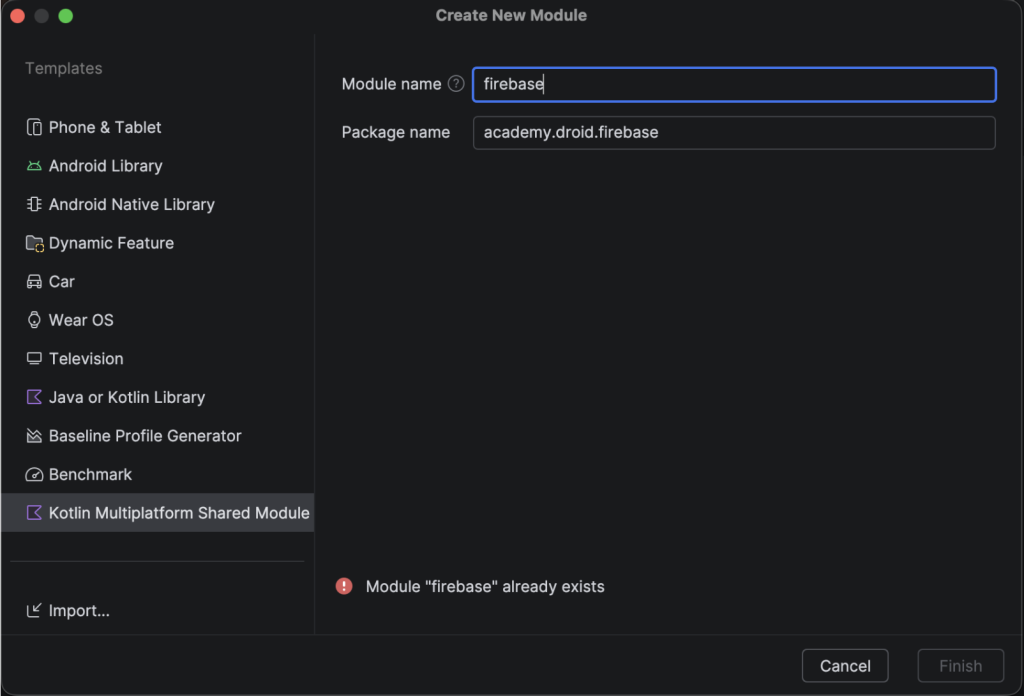
Here we call our new module firebase, followed by assigning it with a corresponding package name that matches the path from our application id. Once this module has been created, we’re going to want to open up the build.gradle.kts file so that we can add the required configuration.
Note: If using the wizard, most of this would have been set up for you already. It’s important to still follow through this part to ensure everything that’s needed is in place.
Setting up the Plugins
We’ll get started here with the plugins block.
plugins {
    alias(libs.plugins.kotlinMultiplatform)
    alias(libs.plugins.androidMultiplatformLibrary)
    alias(libs.plugins.kotlinx.serialization)
}
Here we’re declaring the plugins our shared module requires:
- kotlinMultiplatform configures this as a Kotlin Multiplatform module, this gives us access to the required multiplatform targets which allows it to be consumed from our client apps
- androidMultiplatformLibrary enables this as an android multiplatform library, similar to the android library plugin except for multiplatform environment. This is needed alongside the standard multiplatform plugin to support the Android target.
- serialization gives us access to Kotlin serialization, which will be used for converting our data to and from JSON
Declaring our Targets
With our plugins in place, we now need to tell Kotlin Multiplatform which platforms this module should compile for, which in our case will be Android and iOS.
kotlin {
    android {
        namespace = "academy.droid.firebase"
        compileSdk = 37
        minSdk = 24
    }
    listOf(iosArm64(), iosSimulatorArm64())
}
Here we declare the targets that our shared code will support, beginning with the android() which declares support for Android. When it comes to iOS we declare two different targets, this is because we need to support both physical devices and simulators.
This android configuration is not really any different from what we would already add when building an android app. For iOS though, we need to add two configurations. The first, iosArm64 is for physical devices, and the iosSimulatorArm64 is for the simulator that we will be testing our app on. We’ll be using this same configuration for the other shared modules that we create in the next chapter of the book.
Configuring the Source Sets
With our targets declared, we now need to add the source sets that hold our shared code and its dependencies.
kotlin {
    ...
    sourceSets {
        commonMain.dependencies {
            implementation(libs.ktor.client.core)
            implementation(libs.ktor.client.content.negotiation)
            implementation(libs.ktor.serialization.kotlinx.json)
        }
    }
}
The commonMain source set is where all of our shared code will be housed, here we’re declaring the dependencies it requires.
- ktor.client.core gives us access to the core component of Ktor, specifically the HTTP client that will be used for making network requests
- ktor.client.content.negotiation enables us to automatically convert the network responses into the data classes that we’ll model, using the content-type header to depict for content format
- ktor.serialization.kotlinx.json adds serialization support to Ktor so that we can encode and decode JSON for our requests
Here both the negotiation and json plugins work together when it comes to handling responses. With these in place, we’ll next set up the test dependencies that will allow us to write tests for our shared code.
commonTest.dependencies {
    implementation(libs.ktor.client.mock)
    implementation(kotlin("test"))
    implementation(libs.kotlinx.coroutines.test)
}- ktor.client.mock gives us access to a Mock instance of the Ktor client so that we can mock requests and their responses
- kotlin(“test”) gives us access to kotlin test classes
- kotlinx.coroutines.test provides us with helpers when it comes to working with coroutines within our tests
Now that we have the common dependencies in place, we need to add some dependencies that are specific to our android and iOS targets. These are going to allow us to provide the required HTTP client engines for each platform.
androidMain.dependencies {
    implementation(libs.ktor.client.cio)
}
iosMain.dependencies {
    implementation(libs.ktor.client.darwin)
}
For the Android engine we use ktor.client.cio, which is a coroutine-based networking client written in Kotlin. And for iOS, we use ktor.client.darwin which uses the iOS platform native networking stack, wrapping the URLSession class which is used for making networking requests. With these in place, Ktor will now use the corresponding engine for each target so that networking is handled specifically for each platform.
Configuring the Android Block
With our shared code and tests configured, we now need to add the configuration that the android multiplatform plugin needs. This configuration will look very similar to what we would be configuring using the standard android library plugin.
android {
    namespace = "com.yourname.firebase"
    compileSdk = 34
    defaultConfig {
        minSdk = 24
    }
    compileOptions {
        sourceCompatibility = JavaVersion.VERSION_17
        targetCompatibility = JavaVersion.VERSION_17
    }
}- namespace defines the package that our code will live within
- compileSdk is the Android API level that our project will be compiled using
- minSdk is the lowest Android version that we’ll support
- compileOptions keeps us aligned with the java version used across the rest of our project
With this in place, we now have a module that is configured for Kotlin Multiplatform and ready for us to start writing our shared networking implementation.
Stay tuned for part two of this post, where we’ll move onto building the rest of our Firebase module using ktor.
This post is adapted from Practical KMP, my book on building real Kotlin Multiplatform apps for Android and iOS. If you’d like the full journey of building apps with Kotlin Multiplatform grab a copy.