
When a floating action button kicks off an action that requires a paid plan, such as when free users hit their binder limit in Sleevd, we show an alert dialog to prompt the user to upgrade. In most apps, this dialog fades in at the centre of the screen with no connection to the button that was tapped. While this works and is a standard approach, the button and the dialog feel like two unrelated components, and the user’s eye has to jump from the corner of the screen to the middle.
Instead, I wanted the button itself to become the dialog. The FAB grows out of its corner, travels to the centre of the screen and settles into the shape of the dialog, then plays back in reverse when it’s dismissed. That’s what the MorphingFab component does – it’s a small Compose Multiplatform library that morphs a FAB into an alert dialog and back again:
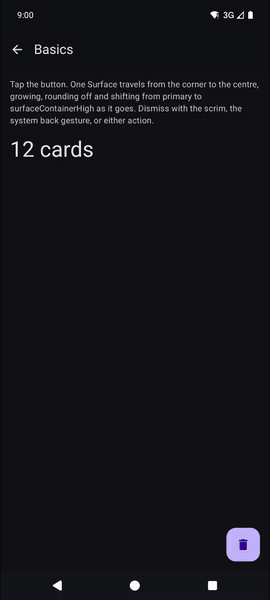
In this blog post, we’ll walk through how MorphingFab is built, starting with a single surface and adding to it one piece at a time until we have the complete implementation.
How the morph works
When it comes to how the animation works, the FAB and the dialog are not two separate components that swap places, they’re the same Surface. A single progress value runs from 0 (the FAB) to 1 (the dialog) so that the surface smoothly animates between the two states:
- Its position and size move from the FAB’s resting spot to the centre of the screen.
- Its corner radius grows from the FAB’s 16dp to the dialog’s 28dp, and its colour blends from primary to surfaceContainerHigh.
- The FAB’s icon fades out early, and the dialog’s content fades in late, so neither is ever squashed into the wrong shape.
- A scrim fades in behind it, darkening the rest of the screen, just as we would usually see from alert dialogs showing.
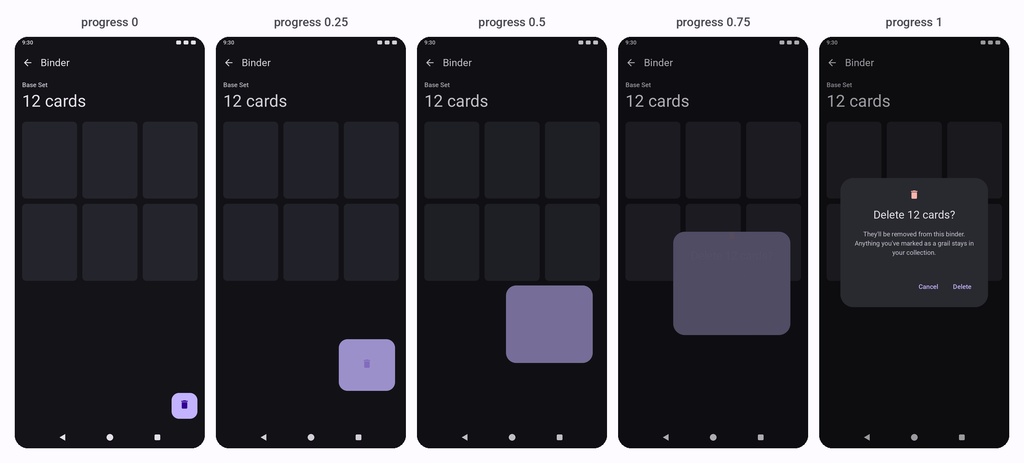
While the FAB is at rest, it’s drawn in the composable tree like any other button, allowing it to be interacted with as a normal FAB would be. As soon as it starts to morph, it moves into a full-screen overlay so that it can travel anywhere on screen and the scrim can cover everything.
Driving the morph with a progress value
Everything in the morph is calculated from a single value, so the first thing we need is something to animate it. For this we use an Animatable, which is started whenever the expanded state changes:
@Composable
fun MorphingFab(
    expanded: Boolean,
    onFabClick: () -> Unit,
    onDismissRequest: () -> Unit,
    animationSpec: AnimationSpec<Float> = MorphingFabDefaults.MorphSpec,
    fabContent: @Composable () -> Unit,
    dialogContent: @Composable ColumnScope.() -> Unit,
) {
    val progress = remember { Animatable(0f) }
    LaunchedEffect(expanded) {
        progress.animateTo(
            targetValue = if (expanded) 1f else 0f,
            animationSpec = animationSpec
        )
    }
    val p = progress.value
}
Here we animate towards 1 when the dialog should be showing, and back to 0 when it shouldn’t. If expanded changes while an animation is still running, animateTo picks up from the current value rather than jumping, so tapping away halfway through the morph simply plays the animation back.
You’ll notice that expanded is passed in rather than held inside the composable, this is because MorphingFab never flips this value itself. So for example, tapping the FAB only calls onFabClick. This leaves the caller free to run whatever checks they need between the tap and the dialog appearing or to not even show the dialog at all.
The default animationSpec is a 350ms tween with FastOutSlowInEasing. This is long enough for the surface to read as a single object travelling across the screen, rather than one thing fading into another. If the user has asked for reduced motion, passing snap() here makes the dialog appear immediately to account for accessibility needs from our users.
Moving and resizing the surface
Now that we have a progress value in place, we can start drawing the surface that it controls. This lives in a private MorphingSurface composable, which takes the progress along with two Rect references, these account for where the surface starts (the FAB) and where it ends up (the dialog):
@Composable
private fun MorphingSurface(
    p: Float,
    startRect: Rect,
    targetRect: Rect,
) {
    with(LocalDensity.current) {
        fun lerpF(a: Float, b: Float) = a + (b - a) * p
        val w = lerpF(startRect.width, targetRect.width)
        val h = lerpF(startRect.height, targetRect.height)
        val left = lerpF(startRect.left, targetRect.left)
        val top = lerpF(startRect.top, targetRect.top)
        Surface(
            modifier = Modifier
                .offset { IntOffset(left.roundToInt(), top.roundToInt()) }
                .size(w.toDp(), h.toDp()),
        ) { }
    }
}
Here we use the lerpF function to perform a linear interpolation, meaning that at a progress of 0 it returns the start value, at 1 it returns the target value, and anywhere in between it returns the matching point between the two. We use this to calculate the width, height, left and top of the surface, and then apply them using the offset and size modifiers.
We use the size of the window to calculate the dialog’s rectangle. We default this to 320 × 280dp in the centre of the screen, with the width clamped so that there’s always at least 24dp between the dialog and the edges of the window:
val width = min(
    style.dialogSize.width.toPx(),
    windowSize.width - style.dialogMinMargin.toPx() * 2f
)
val height = style.dialogSize.height.toPx()
val left = (windowSize.width - width) / 2f
val top = (windowSize.height - height) / 2f
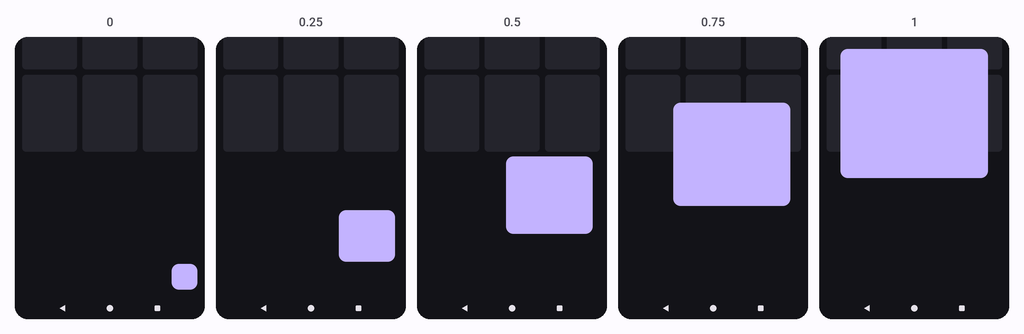
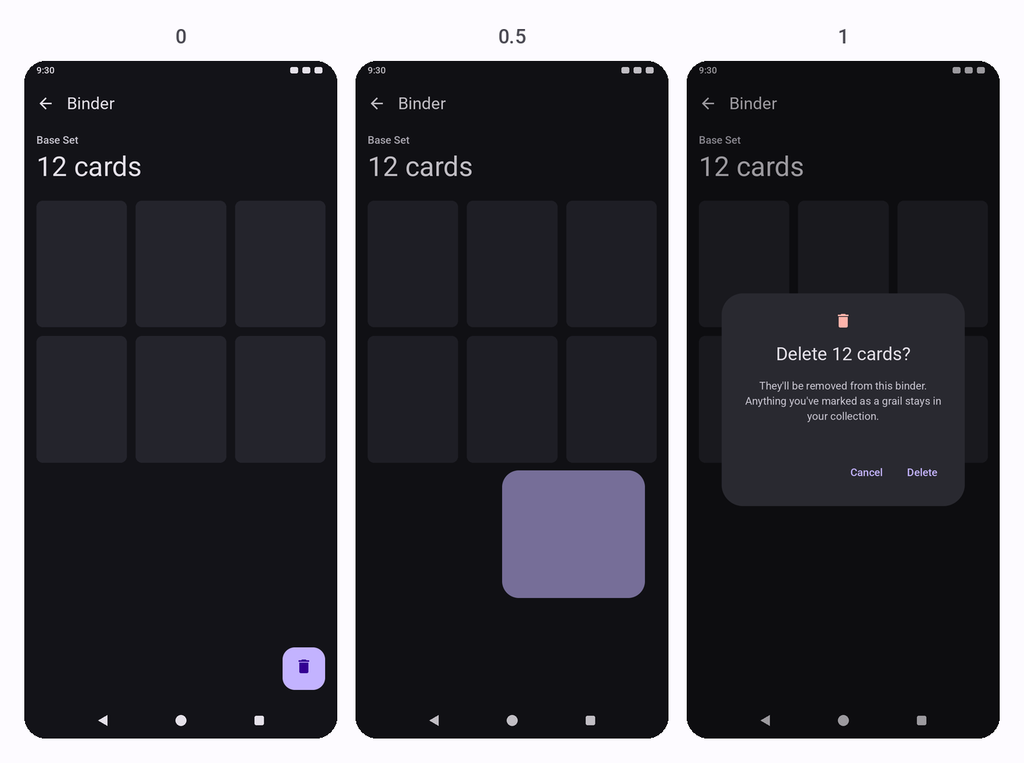
With this in place, the surface now travels from the corner of the screen to the centre, growing as it goes:
Rounding the corners and blending the colour
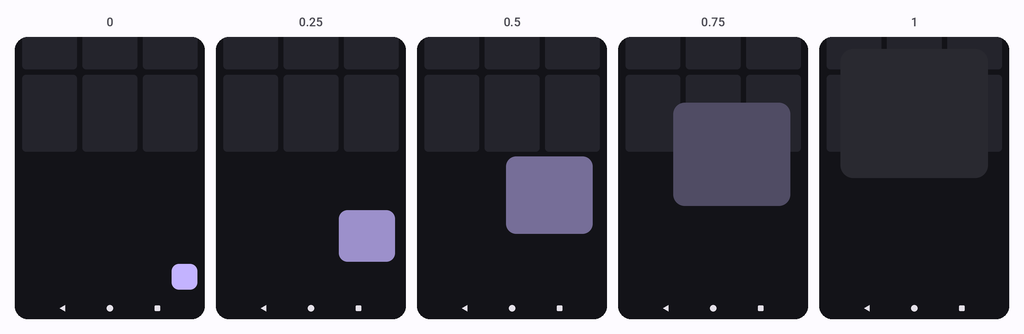
At the moment, our FAB appears to be morphing into another shape because the surface itself keeps the same shape and colour the whole way through the animation. So that our FAB appears to morph into the representation of an alert dialog and feels more natural, we interpolate the corner radius and colour using the same progress value:
val corner = lerpF(style.fabCorner.toPx(), style.dialogCorner.toPx())
val surfaceColor = lerp(colors.fabContainer, colors.dialogContainer, p)
Surface(
    shape = RoundedCornerShape(corner.toDp()),
    color = surfaceColor,
    tonalElevation = style.tonalElevation,
    modifier = Modifier
        .offset { IntOffset(left.roundToInt(), top.roundToInt()) }
        .size(w.toDp(), h.toDp()),
) { }
The corner radius animates from 16dp, the radius of a Material 3 FAB, to 28dp, the radius of a Material 3 dialog. For animating the colour, Compose provides a lerp function for Color that works in the same way as our lerpF, allowing us to blend the color of the FAB’s container into the dialog’s.
Crossfading the content
While our surface now has the right shape, it’s content is empty. When it comes to the content, we need to display two different states – the FAB’s icon at the start of the morph and the dialog’s content at the end. The simplest approach would be a straight crossfade, with the icon at an alpha of 1 – p and the dialog content at an alpha of p. However, this results in the following:
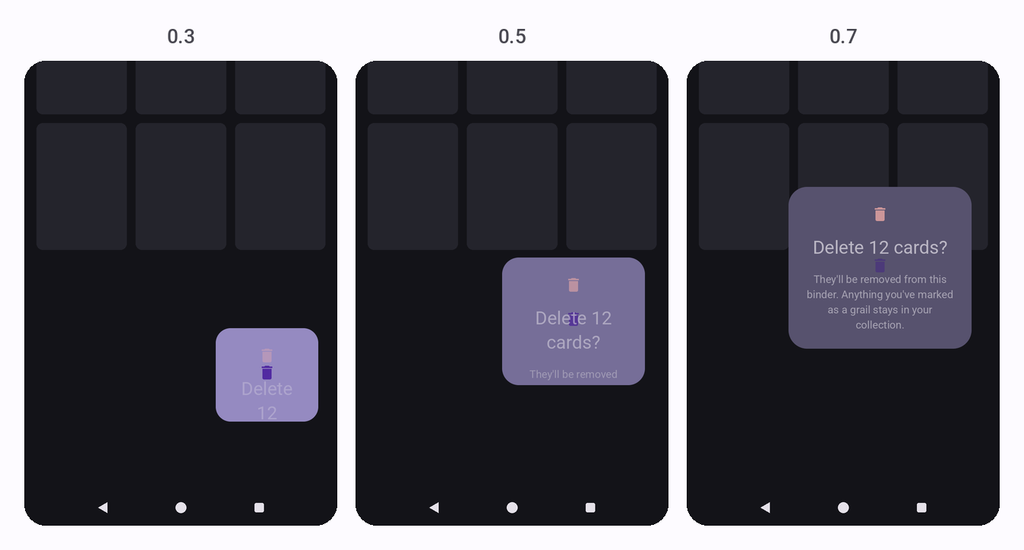
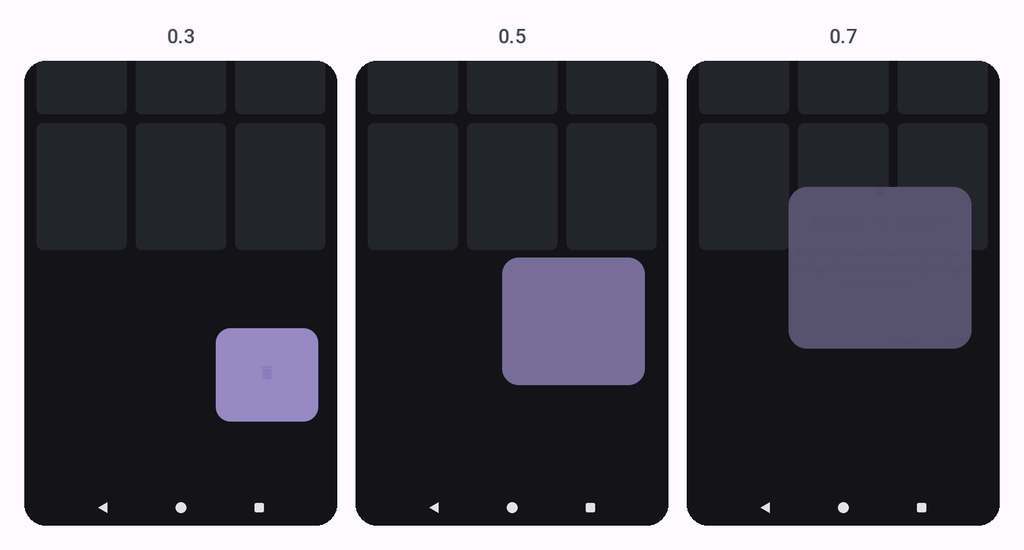
Here, both sets of content are visible at the same time for most of the morph, and the dialog’s text is being laid out inside a box that is way too small for it, resulting in the title wrapping across several lines. To fix the first problem, we give each set of content its own window in which to fade:
val fabContentAlpha = (1f - p / style.fabContentFadeOutBy).coerceIn(0f, 1f)
val dialogAlpha = (
    (p - style.dialogContentFadeInFrom) / (1f - style.dialogContentFadeInFrom)
).coerceIn(0f, 1f)
By default, fabContentFadeOutBy is 1/3, so the icon has completely faded out by the time the morph is a third of the way through. dialogContentFadeInFrom is 0.55, so the dialog’s content doesn’t start to appear until the surface is more than half grown, and only reaches full opacity at the end. Between both of these states the surface itself is empty, which keeps the focus on its movement rather than the content that is displayed inside of it.
To fix the second problem, the dialog’s content is always laid out at its final size regardless of how big the surface currently is:
Box(modifier = Modifier.fillMaxSize(), contentAlignment = Alignment.Center) {
    if (fabContentAlpha > 0f) {
        Box(Modifier.alpha(fabContentAlpha)) { fabContent() }
    }
    if (dialogAlpha > 0f) {
        Column(
            modifier = Modifier
                .requiredSize(targetRect.width.toDp(), targetRect.height.toDp())
                .padding(style.dialogPadding)
                .alpha(dialogAlpha),
            horizontalAlignment = Alignment.CenterHorizontally,
            verticalArrangement = Arrangement.spacedBy(style.dialogSpacing),
            content = dialogContent,
        )
    }
}
Unlike size, the use of requiredSize means that the constraints of the parent are ignored, meaning that the Column is measured at the full size of the dialog even while the surface is smaller. The Box centres it, and the surface’s shape clips whatever falls outside of it. This means the text wraps once, in its final position, and fades in rather than reflowing on every frame as the surface grows.
Working out where the FAB rests
So far we’ve assumed that we already know the FAB’s starting rectangle. MorphingFab works this out itself by filling the space it is given and measuring where that space sits in the window:
var origin by remember { mutableStateOf(Offset.Zero) }
var boxSize by remember { mutableStateOf(Offset.Zero) }
val measured = boxSize.x > 0f && boxSize.y > 0f
Box(
    modifier = modifier.fillMaxSize().onGloballyPositioned {
        origin = it.positionInWindow()
        boxSize = Offset(it.size.width.toFloat(), it.size.height.toFloat())
    }
) { ... }
The onGloballyPositioned modifier gives us the coordinates of the Box once it has been laid out. From these we keep its position in the window and its size, which is everything we need to position the FAB in its bottom-end corner:
val fabSize = style.fabSize.toPx()
val edgePadding = placement.edgePadding.toPx()
val bottomInset = maxOf(navigationBarInset, placement.bottomInset).toPx()
val left = origin.x + boxSize.x - edgePadding - fabSize
val top = origin.y + boxSize.y - bottomInset - edgePadding - fabSize
Rect(left, top, left + fabSize, top + fabSize)
The FAB sits edgePadding in from the right and bottom of the space, as well as being clear of the system navigation bar. If the screen has a floating bottom bar, a bottomInset can be provided to lift the FAB above it. Here the larger of the two insets is used, rather than adding them together – this is because a floating bottom bar will usually apply its own navigationBarsPadding(), so its height already accounts for the navigation bar.
Drawing above the rest of the screen
If we were to draw the whole morph inside of our Box, it could only ever cover the space that the Box has been given. This is usually the content area between the top app bar and the bottom bar. A fillMaxSize() scrim would only darken that part of the screen, and the dialog would be centred within it rather than within the window:
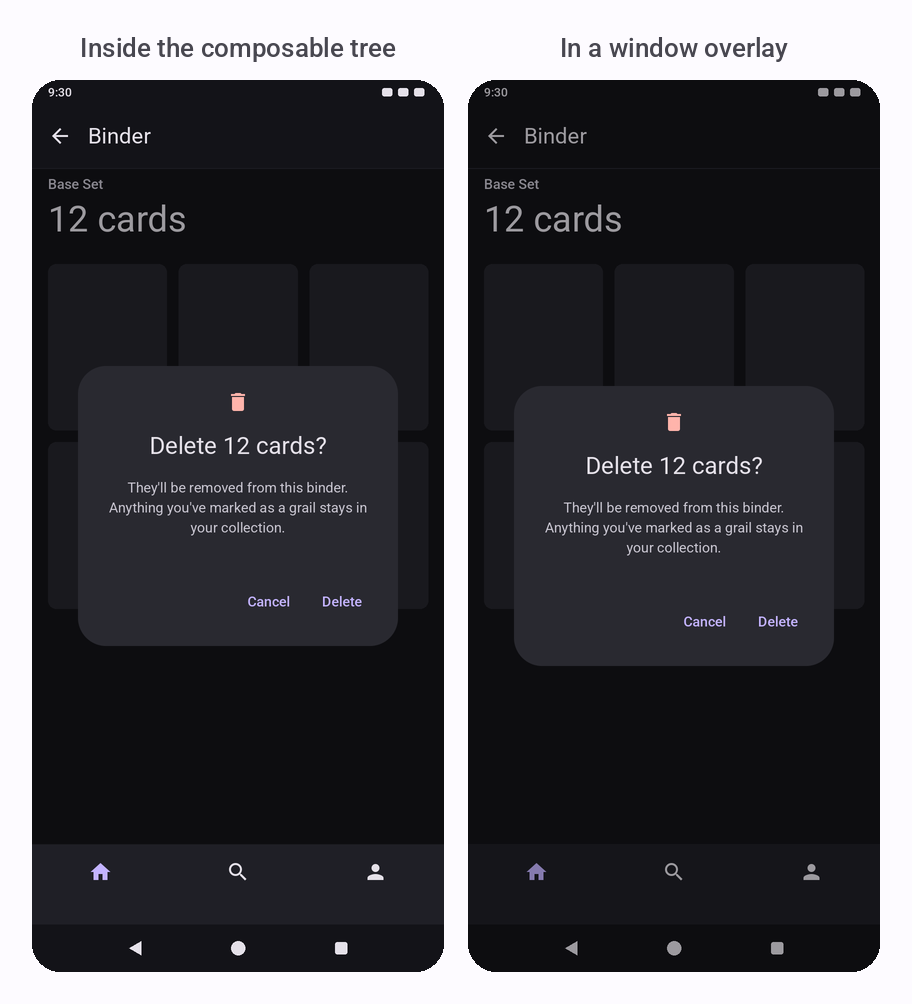
To be able to cover the whole window, the expanded state is drawn inside of a Popup. For this, MorphingFab has a small WindowOverlay composable:
@Composable
fun WindowOverlay(content: @Composable (windowSize: Size) -> Unit) {
    val windowSize = LocalWindowInfo.current.containerSize
    if (windowSize.width <= 0 || windowSize.height <= 0) return
    Popup(
        popupPositionProvider = remember { WindowOriginPositionProvider },
        properties = remember { windowOverlayPopupProperties() },
    ) {
        with(LocalDensity.current) {
            Box(Modifier.size(windowSize.width.toDp(), windowSize.height.toDp())) {
                content(Size(windowSize.width.toFloat(), windowSize.height.toFloat()))
            }
        }
    }
}
Here we read the size of the window from LocalWindowInfo, using PopupPositionProvider to pin the popup to the top-left of the window – the content is then given an explicit size that matches the window. Using fillMaxSize() wouldn’t work here, as the popup window wraps its content.
The popup’s properties differ between platforms, so windowOverlayPopupProperties() is declared using expect / actual. On both platforms the popup isn’t focusable and has clipping disabled, so that it can extend behind the system bars.
Inside of the overlay, we draw a scrim behind our surface. Its alpha is tied to the same progress value, reaching scrimAlpha (0.32) when the dialog is fully open:
WindowOverlay { windowSize ->
    Box(
        modifier = Modifier.fillMaxSize()
            .background(colors.scrim.copy(alpha = style.scrimAlpha * p))
    )
    MorphingSurface(
        p = p,
        startRect = fabWindowRect,
        targetRect = dialogRect(windowSize, style),
        ...
    )
}
Handing over between the tree and the overlay
While the overlay solves the problem of covering the window, we can’t keep it open all of the time. A full-screen popup receives every touch on the screen, so while the FAB is sitting at rest the rest of the screen would stop responding. Because of this, the FAB is only drawn in the overlay while it is morphing. Outside of this, it’s drawn in the composable tree like any other button composable would be:
Box(...) {
    if (p == 0f && fabWindowRect != null) {
        val localFabRect = fabWindowRect.translate(-origin.x, -origin.y)
        MorphingSurface(
            p = 0f,
            startRect = localFabRect,
            targetRect = localFabRect,
            ...
        )
    }
}
if (p > 0f && fabWindowRect != null) {
    WindowOverlay { windowSize -> ... }
}
As soon as the progress moves above 0, the surface in the tree is removed and the overlay is shown, and the reverse happens once the progress returns to 0.
This means the two branches draw in different coordinate spaces. The overlay’s origin is the top-left of the window, so it can use our window rectangle as it is. The tree’s origin is the top-left of our Box, so here we use translate to subtract the Box‘s position in the window. For the handover to be invisible, both of these need to land on exactly the same pixel. If this isn’t the case then the FAB jumps as it moves from one to the other:
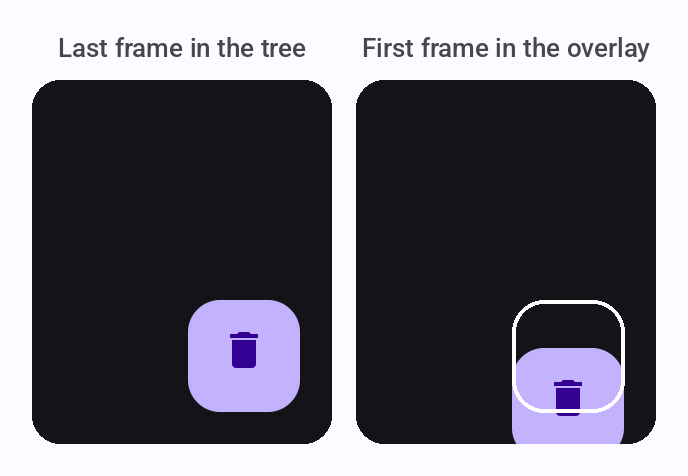
This is where the platform-specific popup properties come in. On Android, clippingEnabled = false places the popup’s top-left at the top-left of the window, so IntOffset.Zero lands where we expect. On iOS, popups apply the safe area insets by default, which would move the whole overlay down by the height of the status bar. To avoid this, the iOS version also sets usePlatformInsets = false:
// iosMain
internal actual fun windowOverlayPopupProperties(): PopupProperties =
    PopupProperties(
        focusable = false,
        clippingEnabled = false,
        usePlatformInsets = false
    )
Dismissing the dialog
Because the dialog isn’t a platform Dialog, it doesn’t get any of the usual ways to dismiss it for free, so we need to add them ourselves. The first is tapping on the scrim:
Box(
    modifier = Modifier.fillMaxSize()
        .background(colors.scrim.copy(alpha = style.scrimAlpha * p))
        .pointerInput(Unit) { detectTapGestures { onDismissRequest() } }
)
The surface sits on top of the scrim, so it also needs to handle taps. Otherwise, tapping anywhere on the dialog that isn’t a button would fall through to the scrim and close it. The surface uses a single tap handler for both states – when collapsed, it calls onFabClick, and when expanded, it does nothing:
val onSurfaceTap: () -> Unit = { if (!expanded) onFabClick() }The second is the system back gesture. For this, MorphingFab declares its own internal BackHandler using expect / actual, enabled only while the dialog is expanded:
BackHandler(enabled = expanded, onBack = onDismissRequest)On Android, this delegates to the BackHandler from androidx.activity. On iOS, it’s currently a no-op. Declaring it inside the library keeps the dependency list to Compose alone, and because it’s internal, it won’t clash with any BackHandler the app already uses.
In both cases, MorphingFab only calls onDismissRequest. It’s still up to the caller to set expanded back to false, at which point the morph plays in reverse.
Providing the dialog content
Everything we’ve built so far takes the dialog’s body as a dialogContent slot, placed inside the Column we saw earlier. As most confirmation dialogs share the same shape, MorphingFab also provides an overload that builds this content for us from an optional icon, a title, some supporting text and a pair of buttons:
MorphingFab(
    ...
) {
    icon?.invoke()
    Text(
        text = title,
        style = MaterialTheme.typography.headlineSmall,
        color = colors.titleContent,
        textAlign = TextAlign.Center,
    )
    Text(
        text = text,
        style = MaterialTheme.typography.bodyMedium,
        color = colors.textContent,
        textAlign = TextAlign.Center,
    )
    Spacer(Modifier.weight(1f))
    Row(
        modifier = Modifier.fillMaxWidth(),
        horizontalArrangement = Arrangement.End,
        verticalAlignment = Alignment.CenterVertically,
    ) {
        TextButton(onClick = onDismiss) { Text(dismissLabel) }
        Spacer(Modifier.width(8.dp))
        TextButton(onClick = onConfirm) { Text(confirmLabel) }
    }
}
This follows the same layout conventions as the AlertDialog. Because the Column is laid out at the dialog’s final size, the Spacer uses a weight of 1 to push the action row down to the bottom of the dialog.
Using MorphingFab in a screen
With everything in place, using the library looks like the following:
var open by remember { mutableStateOf(false) }
Box(Modifier.fillMaxSize()) {
    BinderScreen()
    MorphingFab(
        expanded = open,
        onFabClick = { open = true },
        onDismissRequest = { open = false },
        title = "Delete 12 cards?",
        text = "They'll be removed from this binder.",
        confirmLabel = "Delete",
        onConfirm = { open = false; delete() },
        dismissLabel = "Cancel",
        fabContent = { Icon(Icons.Default.Delete, contentDescription = "Delete") },
    )
}
Because MorphingFab fills its parent to work out where the FAB rests, it needs to be placed at the root of the screen, alongside the screen’s content rather than inside of it.
This also means it can’t go in the floatingActionButton slot of a Scaffold. Scaffold lifts that slot up by the slot’s own measured height, so a component that fills the screen gets lifted by the height of the screen, and the FAB ends up near the middle. For this case, the library provides an Anchored placement – a MorphingFabAnchor reports where the FAB should be, and MorphingFab uses those bounds instead of calculating its own:
var bounds by remember { mutableStateOf<Rect?>(null) }
Scaffold(
    floatingActionButton = {
        MorphingFabAnchor(onBoundsChanged = { bounds = it })
    }
) { ... }
MorphingFab(placement = MorphingFabPlacement.Anchored(bounds), ...)
The anchor is an empty 56dp Box that reports its boundsInWindow(), which is the same coordinate space that the rest of the library works in.
In this post we’ve seen how MorphingFab turns a floating action button into a dialog using a single Surface and progress value. That value drives the surface’s position, size, corner radius and colour, while two thresholds keep the FAB’s icon and the dialog’s content from appearing in the wrong shape. Drawing the morph in a window overlay lets it cover the whole screen, and handing back to the composable tree at rest keeps the rest of the screen responsive. The source for the library and its sample app is available over on GitHub if you would like to dig in! If you have any questions or ideas for improvements, feel free to reach out!