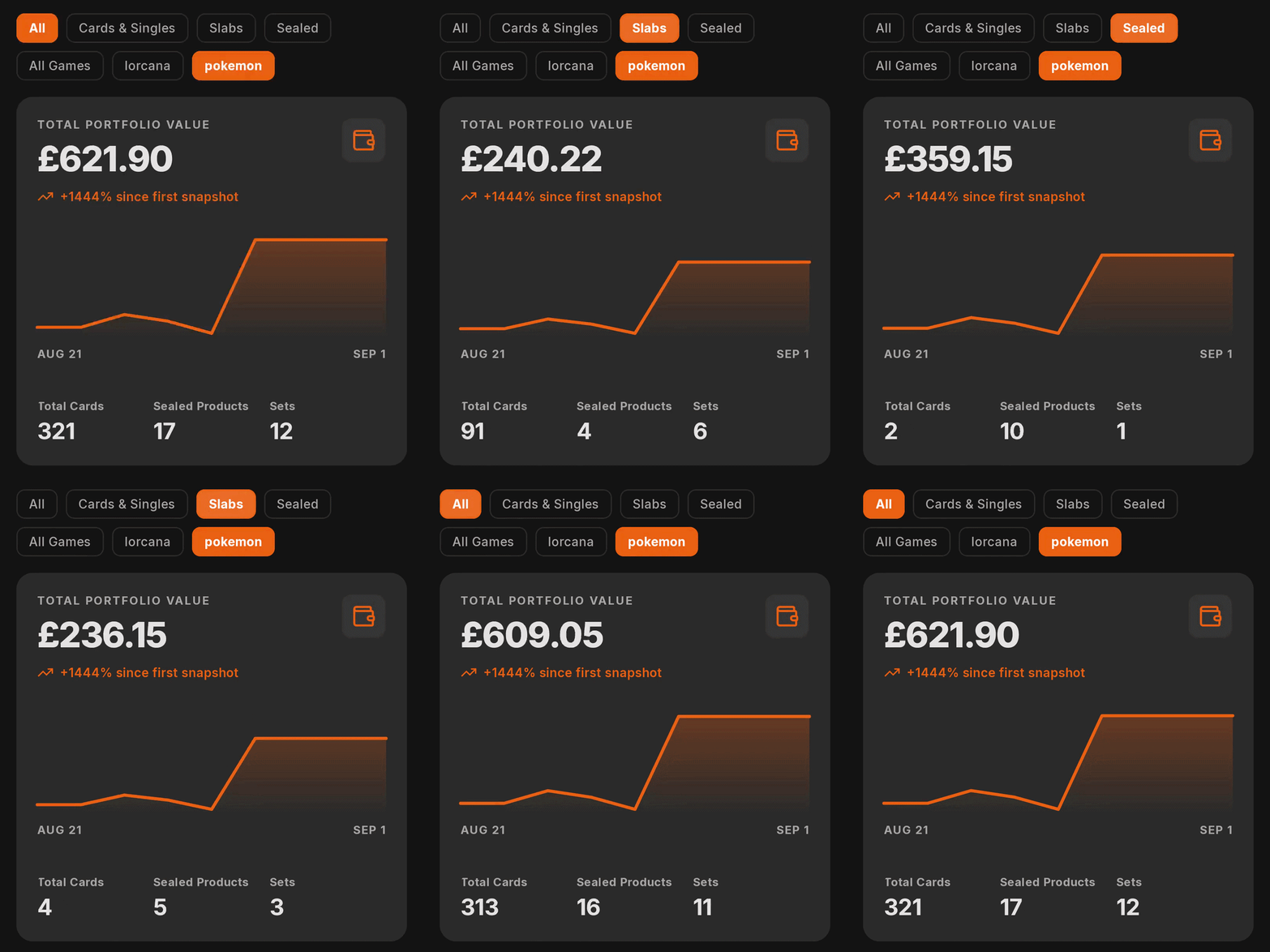
When it comes to displaying portfolio data inside of Sleevd, users can change the selected filters which will adjust the portfolio values based on that selection. Alongside the main graph, we show the total portfolio value along with some small statistics for collection counts. When the user moves between the filter options, the values of these change and the new values represented in the UI.
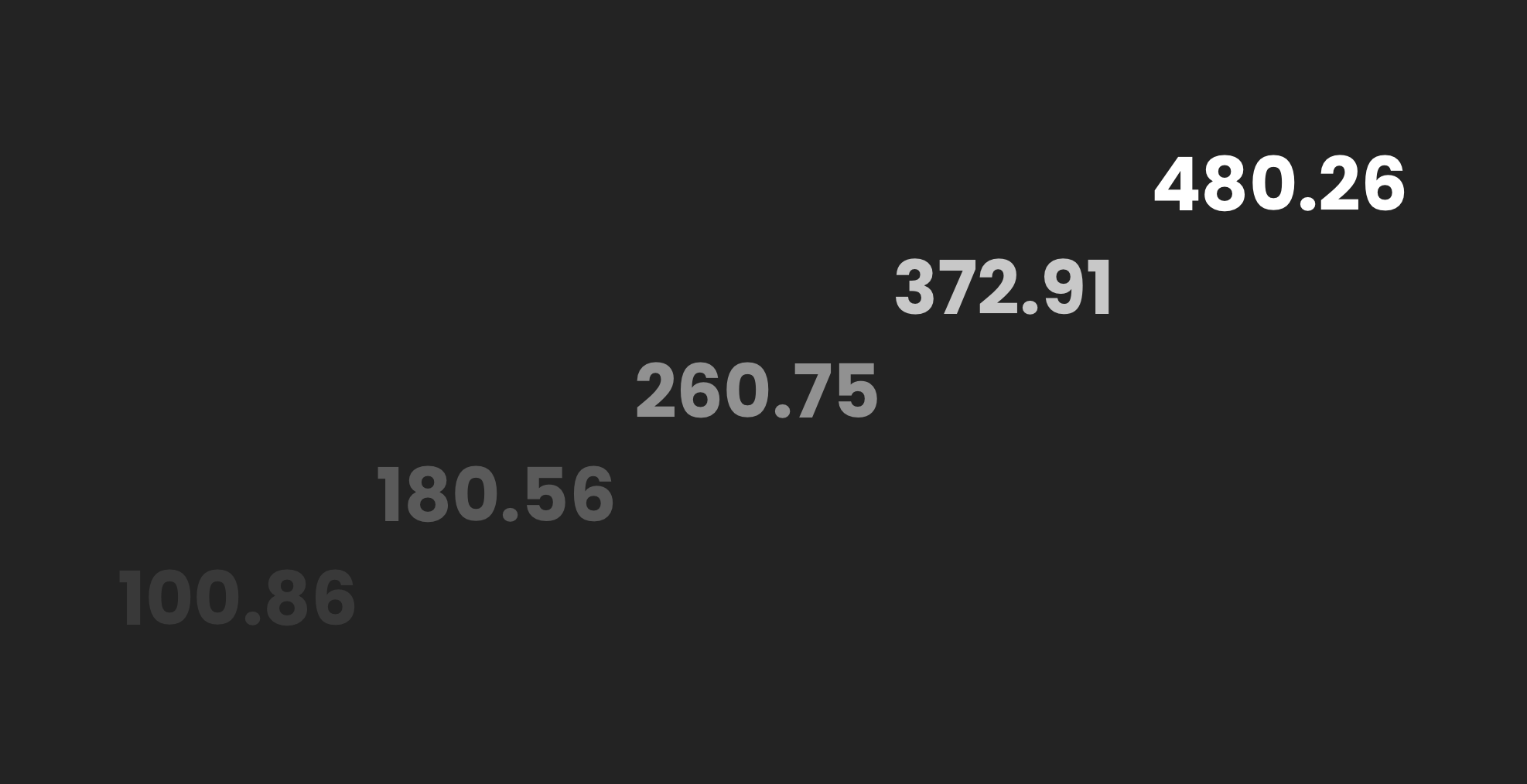
While in a lot of cases, the implementation in apps will just cause these values to switch straight to the new value, there’s better ways for us to do this. Not only does this miss an opportunity to demonstrate the growth (or decline) between the values, but it also doesn’t look very polished. Instead, we can animate between the values in the portfolio screen, resulting in the following:
In this blog post, we’ll dive into how this is built out using Jetpack Compose, bringing much more delight to the portfolio screen!
Animating the value
When it comes to animating a numerical value in Jetpack Compose, the animateFloatAsState API handles this for us. We just need to provide it with a target value and it will return as a State reference that will transition from the current value to the target value, as opposed to switching straight to it. Within the Portfolio card, the implementation looks like the following:
@Composable
fun PortfolioSummaryCard(uiState: PortfolioUiState) {
    val currencySymbol = deviceCurrencySymbol()

    val animatedValue by animateFloatAsState(
        targetValue = uiState.currentValue.toFloat(),
        animationSpec = tween(
            durationMillis = 500,
            easing = FastOutSlowInEasing
        ),
        label = "portfolio_value"
    )

    Text(
        text = "$currencySymbol${formatPrice(animatedValue.toDouble())}"
    )
}
There’s a couple of things going on here, so let’s take a look at the different pieces:
- currencySymbol – this fetches the symbol to be used for the currency value (e.g £ or $). This is extracted into a helper function to keep things tidier
- animateFloatAsState – this is the animation API that we mentioned above, this is what will be used to animate between a current value and target value
- targetValue – this is the value that we want to animate towards. Here we are using currentValue from our uiState reference, so whenever this value changes the target will be changed and the animation will start running. If a new value is provided to the composable while that animation is still running, it will be picked up from there rather than the animation being restarted.
- animationSpec – this is what we use to configure how the animation runs. For this we’re using tween – we set the duration to 500ms so that the values are not animated between too fast (or too slow), as well as FastOutSlowInEasing so that the animation begins quickly and then slows down once it gets closer to the target value.
- label – this is used for compose tooling so that the animation name appears within the layout inspector.
Within this setup, we’re converting the values to float because this is required by the animateFloatAsState API, and our monetary values are stored as Double. We’re also using by delegation so that the State can be unwrapped into a Float value, which can be directly accessed by our Text composable.
With this in place, our Text composable will now animate from the value that it is currently displaying, to the target value that is defined by our animation. So for example, if the Text is currently showing “£100.43” and the target value is “£32.70”, then these values will be animated between.
Formatting the animated value
While this animation logic works, you may have noticed the formatPrice function that our animatedValue is passed to. However, with the way that the numbers are provided to this function, the formatting isn’t quite right to ensure consistent animations. For example, this is the kind of data that will come through:
12481.234
12482.5625
12484.0
12486.8125
We can see that that we have a varying number of decimal places, along with a value whose width that would be changing on almost every animation frame. This will create a broken looking animation in the portfolio view, so to ensure this is smooth we need to make sure that each frame is formatted in the same way that the target value will be. To help with this, we use the following formatting function:
fun formatPrice(price: Double): String {
    val whole = price.toLong()
    val fraction = ((price - whole) * 100).toLong()
    return "$whole.${fraction.toString().padStart(2, '0')}"
}
Here we take the complete value that is provided to the function and pad it out to match the expected final format (which in our case, is two decimal places). With this in place, those same frames from above are now displayed as 12481.23, 12482.56, 12484.00 and 12486.81. For the currency symbol, we add this to the start of the string ourselves outside of this function, after the formatting has been performed.
Handling accessibility
Outside of the animation itself, we also want to make sure that we adhere to any accessibility settings that are configured on the device the app is running on. Here we can simply switch out the animation spec based on the animation settings on the device, which in this case we will simply switch from the treen animation to snap, which will animate the value immediately rather than over a period of time.
val context = LocalContext.current
val scale = Settings.Global.getFloat(
    context.contentResolver,
    Settings.Global.ANIMATOR_DURATION_SCALE,
    1f
)
val reduceMotionEnabled = scale == 0f

val animatedValue by animateFloatAsState(
    targetValue = uiState.currentValue.toFloat(),
    animationSpec = if (reduceMotionEnabled) {
        snap()
    } else {
        tween(500, easing = FastOutSlowInEasing)
    },
    label = "portfolio_value"
)
In this post we’ve seen how with little additional effort we can add some small delight to the portfolio screen in Sleevd. Now when users are switching between different filters, the display price is animated up or down based on the new value that is being applied. This was little work to put in place and I feel it makes a huge difference to this feature!